Upgrade Version: Run with K8s
This guide shows how to deploy applications from Jenkins directly to Kubernetes using kubectl apply.
Architecture Overview
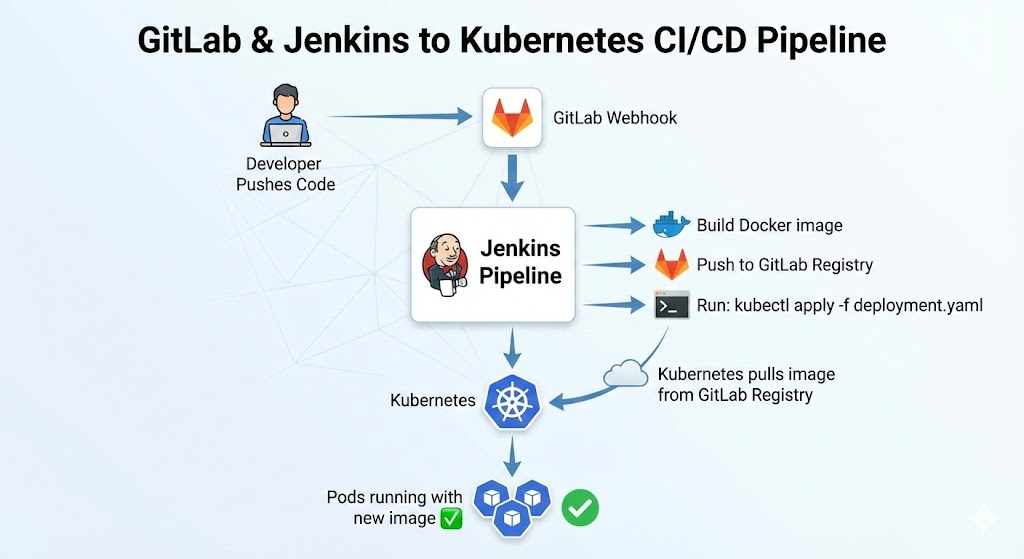 Components:
- GCP VM with Jenkins + GitLab + Nginx (Docker containers)
- GKE Kubernetes Cluster (separate)
- GitLab Registry (private Docker images)
- kubectl in Jenkins to deploy to K8s
Prerequisites
You need:
- GCP VM with Jenkins + GitLab + Nginx running (from previous guide)
- GKE Kubernetes cluster already created
kubectlinstalled and configured to access GKE- kubeconfig credentials ready
Step 1: Create Kubernetes Secret for GitLab Registry
Your K8s cluster needs credentials to pull images from GitLab Registry.
1.1 Create the Secret in K8s
kubectl create secret docker-registry gitlab-registry-secret \
  --docker-server=<VM_EXTERNAL_IP>:5380 \
  --docker-username=root \
  --docker-password=<GITLAB_ROOT_PASSWORD> \
  -n default
Example:
kubectl create secret docker-registry gitlab-registry-secret \
  --docker-server=34.136.104.61:5380 \
  --docker-username=root \
  --docker-password=MyGitLabPassword123 \
  -n default
1.2 Verify the Secret
kubectl get secret gitlab-registry-secret -n default
kubectl describe secret gitlab-registry-secret -n default
Step 2: Install kubectl in Jenkins Container
Jenkins needs kubectl to deploy to K8s.
2.1 Update docker-compose.yml
Modify the Jenkins service to install kubectl:
jenkins:
  image: jenkins/jenkins:lts
  container_name: jenkins
  ports:
    - "8080:8080"
    - "50000:50000"
  volumes:
    - jenkins_data:/var/jenkins_home
    - /var/run/docker.sock:/var/run/docker.sock
    - ~/.kube/config:/root/.kube/config:ro # Add this line
  environment:
    - JENKINS_OPTS="--prefix=/jenkins"
  user: root
  restart: always
  networks:
    - devops-network
2.2 Rebuild Jenkins Container
docker-compose down
docker-compose up -d jenkins
2.3 Install kubectl in Jenkins
SSH into the Jenkins container and install kubectl:
docker exec -it jenkins bash

# Inside container:
curl -LO "https://dl.k8s.io/release/$(curl -L -s https://dl.k8s.io/release/stable.txt)/bin/linux/amd64/kubectl"
chmod +x kubectl
mv kubectl /usr/local/bin/

# Verify
kubectl version --client
Or use a Dockerfile to build a custom Jenkins image with kubectl pre-installed.
Step 3: Create Kubernetes Deployment Manifest
Create a deployment.yaml file in your GitLab repo:
apiVersion: apps/v1
kind: Deployment
metadata:
  name: demo-app
  namespace: default
spec:
  replicas: 2
  selector:
    matchLabels:
      app: demo-app
  template:
    metadata:
      labels:
        app: demo-app
    spec:
      imagePullSecrets:
        - name: gitlab-registry-secret # Reference the K8s secret
      containers:
        - name: demo-app
          image: <VM_EXTERNAL_IP>:5380/root/demo-app:latest
          imagePullPolicy: Always
          ports:
            - containerPort: 3000
          livenessProbe:
            httpGet:
              path: /
              port: 3000
            initialDelaySeconds: 30
            periodSeconds: 10
          readinessProbe:
            httpGet:
              path: /
              port: 3000
            initialDelaySeconds: 10
            periodSeconds: 5
---
apiVersion: v1
kind: Service
metadata:
  name: demo-app-svc
  namespace: default
spec:
  type: LoadBalancer
  selector:
    app: demo-app
  ports:
    - port: 80
      targetPort: 3000
      protocol: TCP
Key points:
imagePullSecrets: - name: gitlab-registry-secret→ tells K8s to use the secretimage: <VM_EXTERNAL_IP>:5380/root/demo-app:latest→ pull from GitLab RegistryimagePullPolicy: Always→ always pull fresh image on deploymentServiceexposes the app via LoadBalancer
Commit this to your GitLab repo.
Step 4: Update Jenkins Pipeline to Deploy to K8s
Modify your Jenkins Jenkinsfile to include kubectl deployment:
pipeline {
    agent any

    environment {
        GITLAB_REGISTRY = '34.136.104.61:5380'  // Change to your VM IP
        PROJECT_NAME = 'root'  // GitLab group/user
        IMAGE_NAME = "${GITLAB_REGISTRY}/${PROJECT_NAME}/demo-app"
        IMAGE_TAG = "${BUILD_NUMBER}"
        KUBECONFIG = '/root/.kube/config'  // K8s config path
        KUBE_NAMESPACE = 'default'
    }

    stages {
        stage('Checkout') {
            steps {
                echo "Cloning repository..."
                git credentialsId: 'gitlab-token',
                    url: 'http://gitlab/root/demo-app.git',
                    branch: 'main'
            }
        }

        stage('Build Docker Image') {
            steps {
                echo "Building Docker image..."
                script {
                    sh "docker build -t ${IMAGE_NAME}:${IMAGE_TAG} ."
                    sh "docker tag ${IMAGE_NAME}:${IMAGE_TAG} ${IMAGE_NAME}:latest"
                }
            }
        }

        stage('Push to GitLab Registry') {
            steps {
                echo "Pushing to GitLab Registry..."
                script {
                    withCredentials([usernamePassword(
                        credentialsId: 'gitlab-credentials',
                        usernameVariable: 'USER',
                        passwordVariable: 'PASS'
                    )]) {
                        sh '''
                            echo $PASS | docker login -u $USER --password-stdin ${GITLAB_REGISTRY}
                            docker push ${IMAGE_NAME}:${IMAGE_TAG}
                            docker push ${IMAGE_NAME}:latest
                        '''
                    }
                }
            }
        }

        stage('Update Deployment Manifest') {
            steps {
                echo "Updating deployment image tag..."
                script {
                    sh '''
                        sed -i "s|image: .*/demo-app:.*|image: ${IMAGE_NAME}:${IMAGE_TAG}|g" deployment.yaml
                        cat deployment.yaml
                    '''
                }
            }
        }

        stage('Deploy to Kubernetes') {
            steps {
                echo "Deploying to Kubernetes..."
                script {
                    sh '''
                        kubectl apply -f deployment.yaml --kubeconfig=${KUBECONFIG}
                        kubectl rollout status deployment/demo-app -n ${KUBE_NAMESPACE} --timeout=2m
                    '''
                }
            }
        }

        stage('Verify Deployment') {
            steps {
                echo "Verifying deployment..."
                script {
                    sh '''
                        echo "Pods:"
                        kubectl get pods -n ${KUBE_NAMESPACE} -l app=demo-app
                        echo ""
                        echo "Service:"
                        kubectl get svc -n ${KUBE_NAMESPACE} demo-app-svc
                    '''
                }
            }
        }
    }

    post {
        success {
            echo "✅ Deployment to Kubernetes successful!"
            sh "kubectl get all -n ${KUBE_NAMESPACE} -l app=demo-app"
        }
        failure {
            echo "❌ Deployment failed!"
            sh "kubectl describe deployment demo-app -n ${KUBE_NAMESPACE}"
        }
    }
}
Pipeline stages:
- Checkout → clone app code from GitLab
- Build Docker Image → build and tag image
- Push to GitLab Registry → push image with build number tag and latest tag
- Update Deployment Manifest → update image tag in deployment.yaml
- Deploy to Kubernetes → run
kubectl apply -f deployment.yaml - Verify Deployment → check pods and services
Step 5: Add Jenkins Credentials for GitLab Registry
Jenkins needs credentials to push images to GitLab Registry.
5.1 Add Credentials in Jenkins UI
- Go to Manage Jenkins → Manage Credentials
- Click Add Credentials
- Fill in:
- Kind:
Username with password - Username:
root(GitLab admin user) - Password:
<GITLAB_ROOT_PASSWORD> - ID:
gitlab-credentials
- Kind:
- Click Create
Step 6: Set Up GitLab Webhook to Trigger Jenkins
6.1 Create Jenkins Pipeline Job
- In Jenkins, click New Item
- Name:
demo-app-pipeline - Type: Pipeline
- In Build Triggers, check Build when a change is pushed to GitLab
- In Pipeline Script, paste the Jenkinsfile from Step 4
- Save
6.2 Add Webhook in GitLab
- In GitLab project, go to Settings → Webhooks
- URL:
http://jenkins:8080/project/demo-app-pipeline - Secret Token: (optional, leave blank for testing)
- Trigger: Check Push events
- Uncheck Enable SSL verification (for testing)
- Click Add webhook
- Click Test → Push events
Jenkins should automatically start a build.
Step 7: Test the Complete Pipeline
7.1 Clone App Repo and Make Changes
git clone http://<VM_EXTERNAL_IP>:8081/root/demo-app.git
cd demo-app
7.2 Add Dockerfile
Create a Dockerfile:
FROM node:16-alpine

WORKDIR /app

COPY package.json package-lock.json ./
RUN npm install

COPY . .

EXPOSE 3000

CMD ["npm", "start"]
(Or use any language/framework you prefer)
7.3 Commit and Push
git add Dockerfile deployment.yaml
git commit -m "Add Docker and K8s deployment"
git push origin main
7.4 Watch Jenkins Build and Deploy
- Jenkins receives webhook notification
- Jenkins builds Docker image
- Jenkins pushes to GitLab Registry
- Jenkins runs
kubectl apply -f deployment.yaml - K8s pulls image from GitLab Registry
- Pods start running
- Service exposes app via LoadBalancer
Check in K8s:
kubectl get pods -n default -l app=demo-app
kubectl get svc -n default demo-app-svc
kubectl logs -n default deployment/demo-app
Get external IP:
kubectl get svc demo-app-svc -n default
# Copy the EXTERNAL-IP and open in browser
Updating Your App
Every time you push code:
- Git push → GitLab webhook fires
- Jenkins builds new Docker image with
BUILD_NUMBERtag - Jenkins pushes to GitLab Registry
- Jenkins updates deployment.yaml with new image tag
- Jenkins runs
kubectl apply -f deployment.yaml - K8s sees new image tag
- K8s rolls out new pods automatically
- Old pods gradually replaced (rolling update)
No manual kubectl commands needed!
Troubleshooting
Jenkins can't access GitLab Registry
Error: denied: access denied
Fix:
# Verify credentials in Jenkins
docker exec jenkins docker login 34.136.104.61:5380
# Enter username: root, password: <GitLab password>

# Should see "Login Succeeded"
K8s can't pull image from GitLab Registry
Error: ImagePullBackOff or Failed to pull image
Fix:
# Verify secret exists
kubectl get secret gitlab-registry-secret -n default

# Verify secret contents
kubectl get secret gitlab-registry-secret -n default -o yaml

# Check if image path is correct
kubectl describe pod <pod-name> -n default
# Look for image pull errors

# Test manual pull
docker pull 34.136.104.61:5380/root/demo-app:latest
Deployment times out
Error: deployment rollout status timeout
Fix:
# Check pod status
kubectl describe pod <pod-name> -n default

# Check image pull status
kubectl get events -n default --sort-by='.lastTimestamp'

# Check resource limits
kubectl top nodes
kubectl top pods -n default

# Increase timeout in Jenkinsfile if needed
# kubectl rollout status deployment/demo-app -n ${KUBE_NAMESPACE} --timeout=5m
Jenkins doesn't have kubectl access
Error: kubectl command not found or kubeconfig not found
Fix:
# SSH into Jenkins container
docker exec -it jenkins bash

# Check if kubectl is installed
which kubectl

# Check if kubeconfig exists
ls -la ~/.kube/config

# If not, install kubectl again (see Step 2)
Image not updating in K8s
Problem: Even after pushing new image, pods still run old image
Fix:
# Set imagePullPolicy to Always in deployment.yaml
imagePullPolicy: Always

# Or manually delete old pods
kubectl delete pod -l app=demo-app -n default

# Or force new rollout
kubectl rollout restart deployment/demo-app -n default
Security Notes
- GitLab Registry Secret should be created in each namespace that needs access
- KUBECONFIG mounted as read-only in Jenkins container
- Jenkins service account should have limited RBAC permissions (not cluster-admin)
- Credentials stored in Jenkins credentials store, never hardcoded
- Network policies can restrict traffic between namespaces/pods
Next Steps
To improve this setup:
- Add RBAC → Create Jenkins service account with minimal permissions
- Add network policies → Restrict traffic between pods
- Add monitoring → Prometheus + Grafana to monitor deployments
- Add logging → ELK stack or Google Cloud Logging
- Add backup → Backup K8s configurations and GitLab data
- Add multiple environments → Dev, staging, prod clusters with separate pipelines
Conclusion
You now have a simple, working CI/CD pipeline:
- Jenkins builds images and deploys
- GitLab Registry stores images
- Kubernetes runs the app